Chat Basics - How To Chat as a Beginner
CHAT BASICS - CHAT AS A BEGINNER
The first thing you will see when selecting a storyline is the persona selections screen, this is where you pick the character you want to play as for the storyline you have chosen.
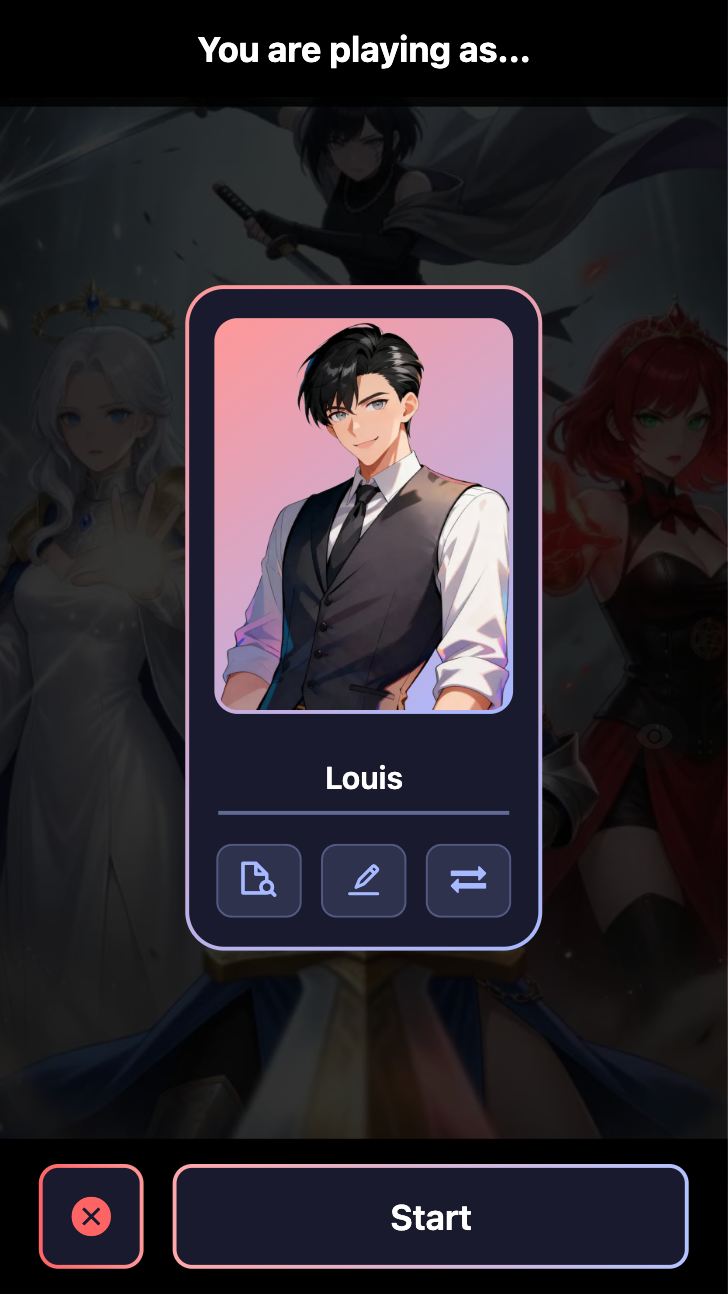
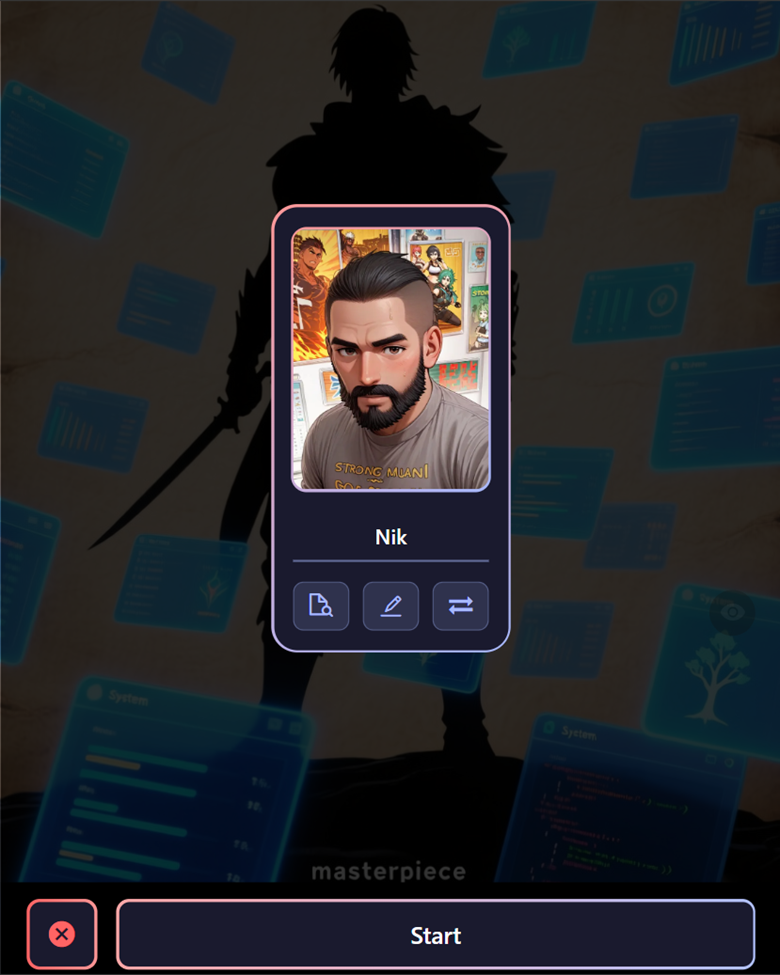
You will see three buttons at the bottom of the characters card, these are;


Once you have your character selected and hit start, it takes you to the Chat Screen, clicking on any message will bring up a few options:
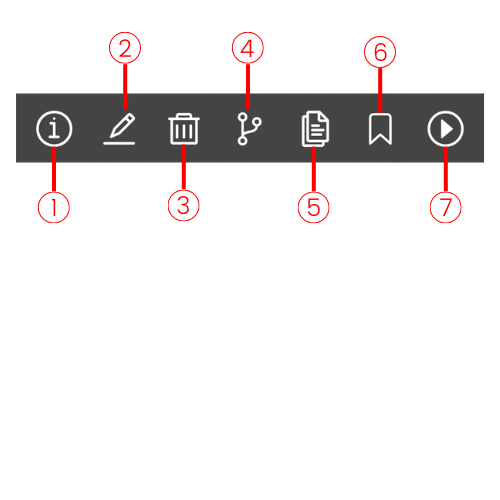
From left to right these options are:
More info on Play Mode here:
At the bottom of the chat screen, you will see another group of option:










Special Chat Commands
Unlike most other AI chat platforms, bots on Isekai Zero are interactive AI storylines, not just simple one-one character chat bots. This means we have a few more options than just conversational interactions. When you select a bot from the homepage, you are choosing a Story that you want to explore, and we interact with them in a few different ways:
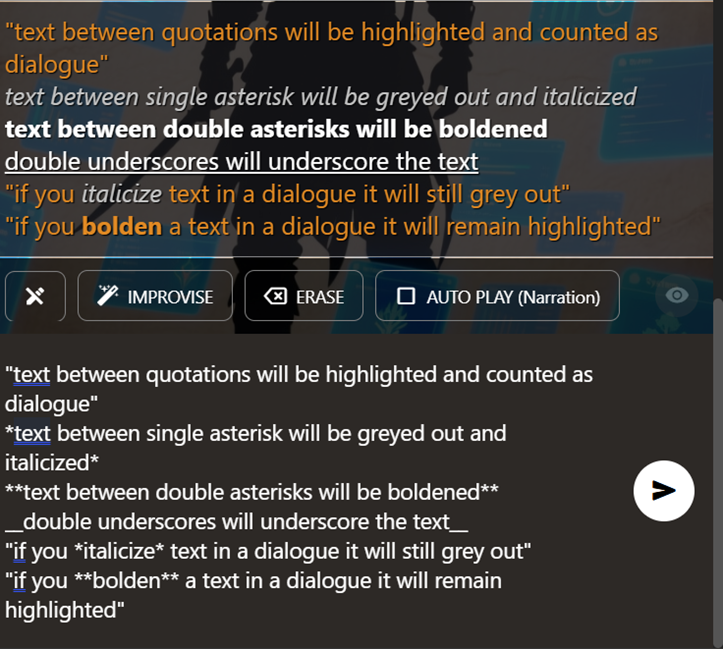
The bottom section of this image is the chat input field, and the top is the output and as you can see, there are a few different ways you can show emphasis or relay importance.
Your dialogue should always be between quotation (“ ”) marks; this lets the AI know what your character is saying, vs what they are doing. It also makes it easier to read because all dialogue is highlighted (the orange-colored text).
If you want to emphasize something, using single or double asterisks lets the AI know **to pay attention to this!**
- You can also use the double asterisk to indicate **Loud Speech** like yelling, shouting, or aggressive emphasis.
Example: “I have **NO** idea!” or “hey, **WATCH OUT!**”
- Single asterisks are more for *Low Speech* whispering, telepathy, or sarcastic emphasis.
Example: “oh, yeah, I'm *definitely* going to make sure I remember that” or, *”keep your voice down, we need to whisper!”*
Basically, bold when you want to yell, italics when you need to whisper.
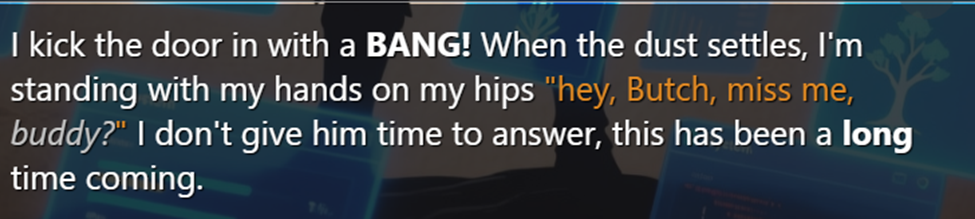
Here is an example where I want my character to kick in the door of a bar and make a big scene.
The input:
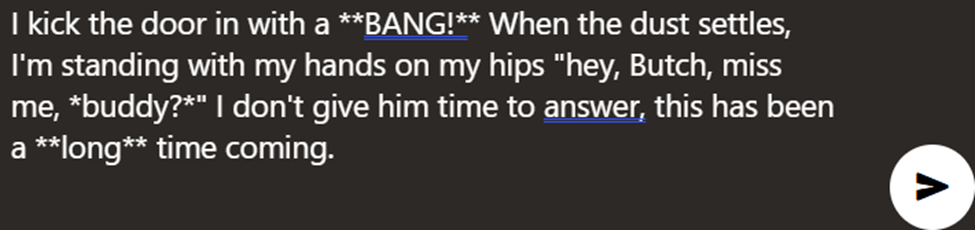
The output:
OOC: Out Of Character
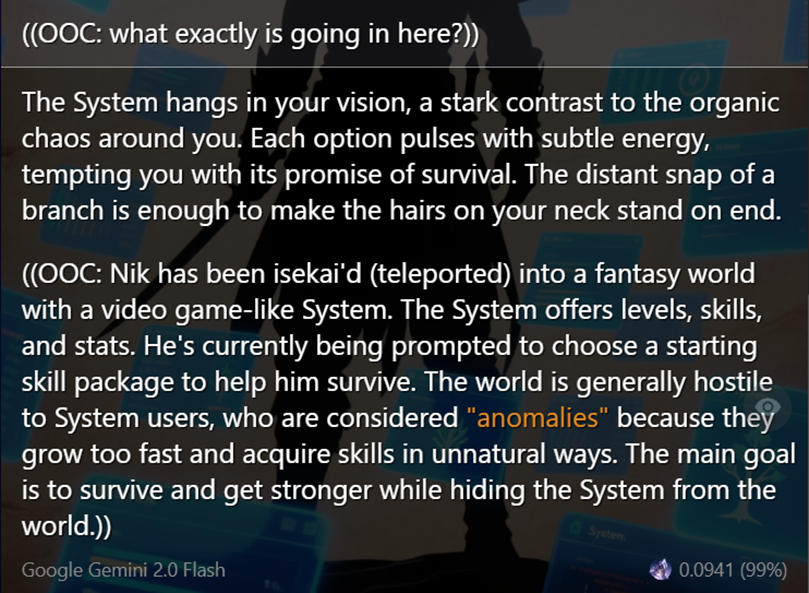
Sometimes we can get a little lost in the story, or forget where we left off, who an important character was, exactly how the magic system in the story was playing works exactly. It happens, there are a lot of different worlds to keep track of and it can be a hassle having to go back and re-read stuff just to catch back up. This is where OOC comes in handy. OOC is “Out of Character,” and is basically the command you can use to talk to the AI directly. Think of it as asking the DM a question.