
Chat Basics - How To Chat as a Beginner
CHAT BASICS - CHAT AS A BEGINNER
The first thing you will see when selecting a storyline is the persona selections screen, this is where you pick the character you want to play as for the storyline you have chosen.
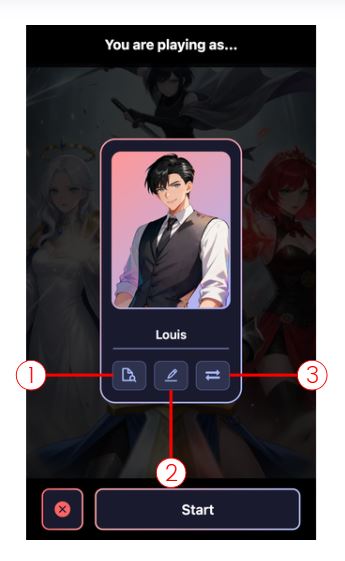
You will see three buttons at the bottom of the characters card.
Following the numbering, these are:
- View Character - Allows you to look and review the character sheet
- Edit Character - Takes you to the Edit Character screen
- Switch Character - Takes you to your list of available characters to choose from
Once you have your character selected and hit start, it takes you to the Chat Screen, clicking on any message will bring up a few options:
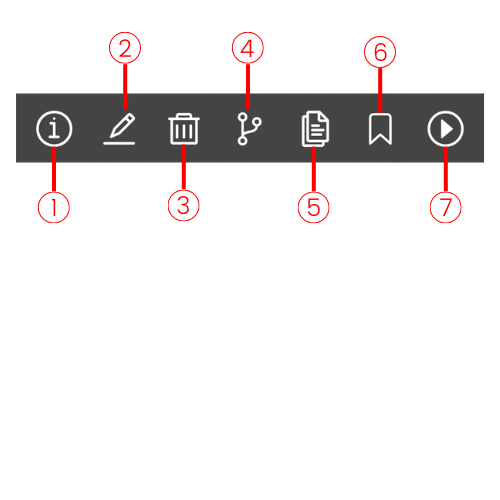
Following the numbering, these are:
- Usage Details
Selecting this option will bring up a screen that gives you the full breakdown of the tokens used and Mana/Arcane cost for the selected message. More info on transparent pricing and token usage here:
- Edit Message - This option opens the message in an editable screen and allows you to change, remove, or add whatever you want to the message. Yes, you can edit the AI responses as well!
- Delete Message - Deletes the selected message.
- Create Branching Message - This option will start an entirely new chat that is an exact copy of your current chat up to the selected message, think of it as an alternative timeline.
- Copy Message - Copies the selected message’s text.
- Save Message - Save the selected message so you can quickly return to it later.
- Play Message - This will play either the Narration or the Visual Novel for the selected message depending on your Play Mode.
More info on Play Mode here:
At the bottom of the chat screen, you will see another group of option:
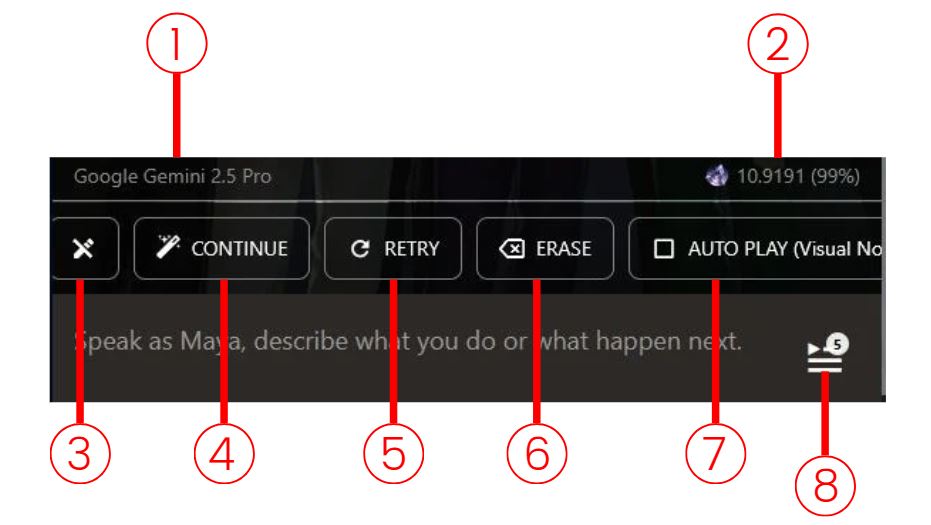
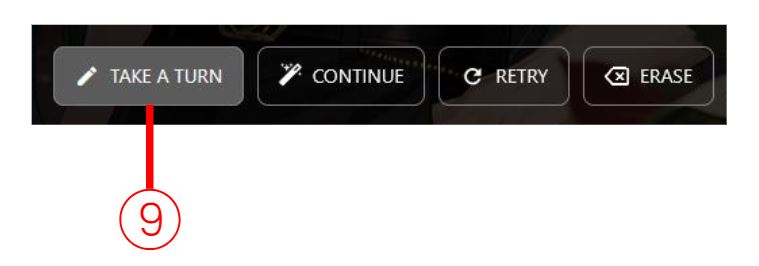
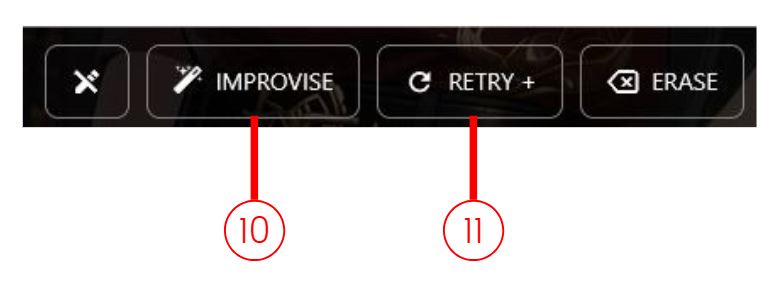
Following the numbering, these are:
- LLM model used to generate the message.
- Mana/Arcane cost for the message and the percentage amount of the tokens cached.
- Close Chat - This button will close the chat field
- Continues the scene from the current message without any input from you or your character.
- Tells the AI to re-do the last message. Useful for when you did not quite like the last response.
- Delete the most recent message.
- Toggle Auto Play - Toggles each new message to automatically play either Narration or Visual Novel mode depending on your settings.
- Choose Your Destiny - Allows you to choose from several AI generated responses to the current message.
- Take A Turn - If the chat field is closed, this button will open it back.
- Takes whatever you have typed into the chat field and uses that as instruction to continue the previous scene without any input from your character.
- This option will take whatever you have typed into the chat field as instructions for how you want the last message to be redone.
Special Chat Commands
Unlike most other AI chat platforms, bots on Isekai Zero are interactive AI storylines, not just simple one-one character chat bots. This means we have a few more options than just conversational interactions. When you select a bot from the homepage, you are choosing a Story that you want to explore, and we interact with them in a few different ways:
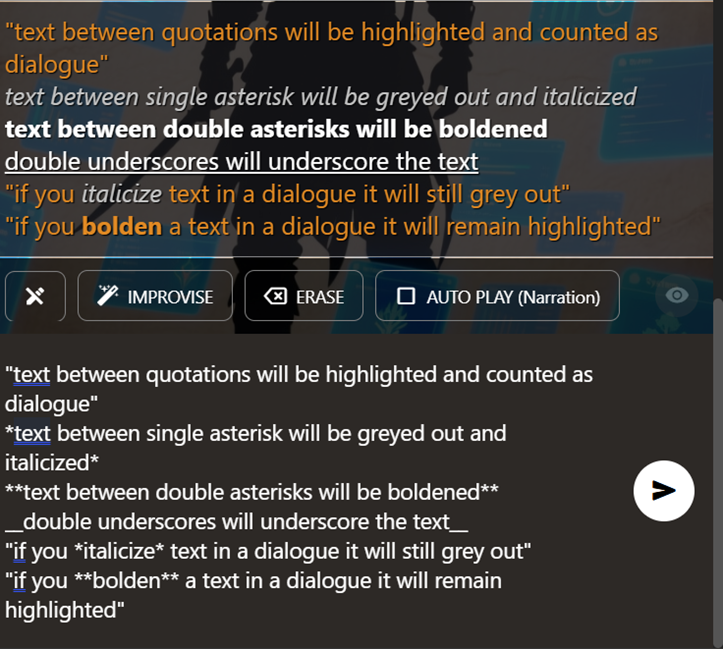
The bottom section of this image is the chat input field, and the top is the output and as you can see, there are a few different ways you can show emphasis or relay importance.
Your dialogue should always be between quotation (“ ”) marks; this lets the AI know what your character is saying, vs what they are doing. It also makes it easier to read because all dialogue is highlighted (the orange-colored text).
If you want to emphasize something, using single or double asterisks lets the AI know **to pay attention to this!**
- You can also use the double asterisk to indicate **Loud Speech** like yelling, shouting, or aggressive emphasis.
Example: “I have **NO** idea!” or “hey, **WATCH OUT!**”
- Single asterisks are more for *Low Speech* whispering, telepathy, or sarcastic emphasis.
Example: “oh, yeah, I'm *definitely* going to make sure I remember that” or, *”keep your voice down, we need to whisper!”*
Basically, bold when you want to yell, italics when you need to whisper.
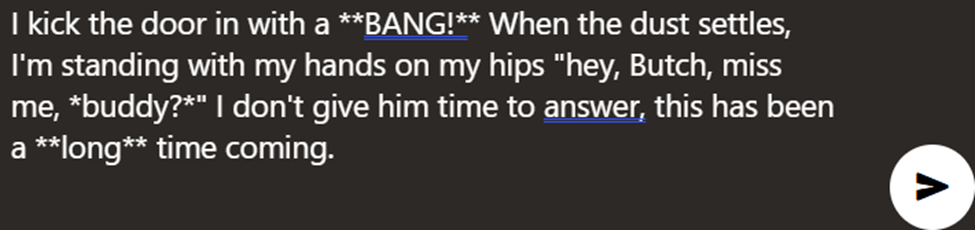
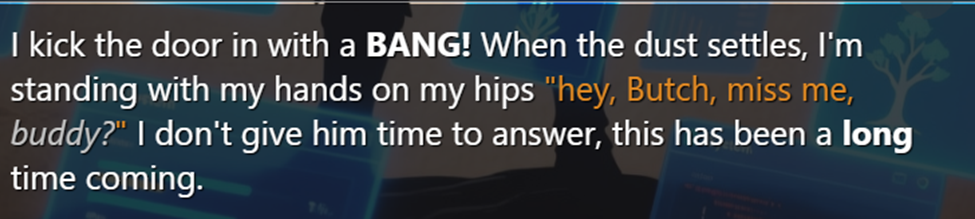
Here is an example where I want my character to kick in the door of a bar and make a big scene.
The input:
The output:
OOC: Out Of Character
Sometimes we can get a little lost in the story, or forget where we left off, who an important character was, exactly how the magic system in the story was playing works exactly. It happens, there are a lot of different worlds to keep track of and it can be a hassle having to go back and re-read stuff just to catch back up. This is where OOC comes in handy. OOC is “Out of Character,” and is basically the command you can use to talk to the AI directly. Think of it as asking the DM a question.
OOC (Out of Character) lets you talk directly to the AI instead of staying in the roleplay. There are now two ways to use it: implicit and explicit.
Implicit OOC
Just start a new line with "ooc" anywhere in your message. The AI will pick up on it automatically.
For example:
Heyy what's up
ooc slow down the pace
As long as "ooc" is the first word on a new line, the AI will treat everything after it as an out-of-character instruction.
Explicit OOC
After you type something in the input box, you'll see a new OOC button. Use this when you want to fully step out of the roleplay — whether that's to have a direct conversation with the model or to give it a specific command. Clicking the button switches the entire message to OOC mode, so nothing you write will be interpreted as part of the RP.
New: Custom User Input Prompt
This might look similar to the Guidance Prompt, but it works differently. The Custom User Input Prompt gets appended to every single message you send. That makes it ideal for persistent reminders or rules you always want active (e.g., "keep responses under 500 words" or "always stay in first person").
A word of caution: because it applies to every input, avoid putting anything too specific or situational in here — otherwise the AI will try to follow that direction no matter what, even when it doesn't make sense.