
Choosing Your LLM Model
What are LLMs?
- LLM (Large Language Model) powers the AI responses in your Storyline
- Different models offer varying quality, speed, and context capabilities
- Each model has its own strengths, weaknesses, and costs
Three Types of LLM Models
Free Models
- Completely free to use - no Mana or Arcane credits required
- Best for casual play or testing Storylines
- Lower context limits and may have basic capabilities
Standard Models
- Uses Mana credits as primary currency
- If Mana runs out, automatically switches to Arcane credits
- Moderate context limits and capabilities
- Uses Arcane credits only
- Highest quality responses and largest context windows
- Best for immersive, complex storylines
- Advanced capabilities and superior performance
Understanding Model Costs
- Input Tokens: Cost per 1 million tokens you send (your messages)
- Output Tokens: Cost per 1 million tokens the AI generates (AI responses)
Example:
- Free Model: 0 Mana/Arcane for both input and output
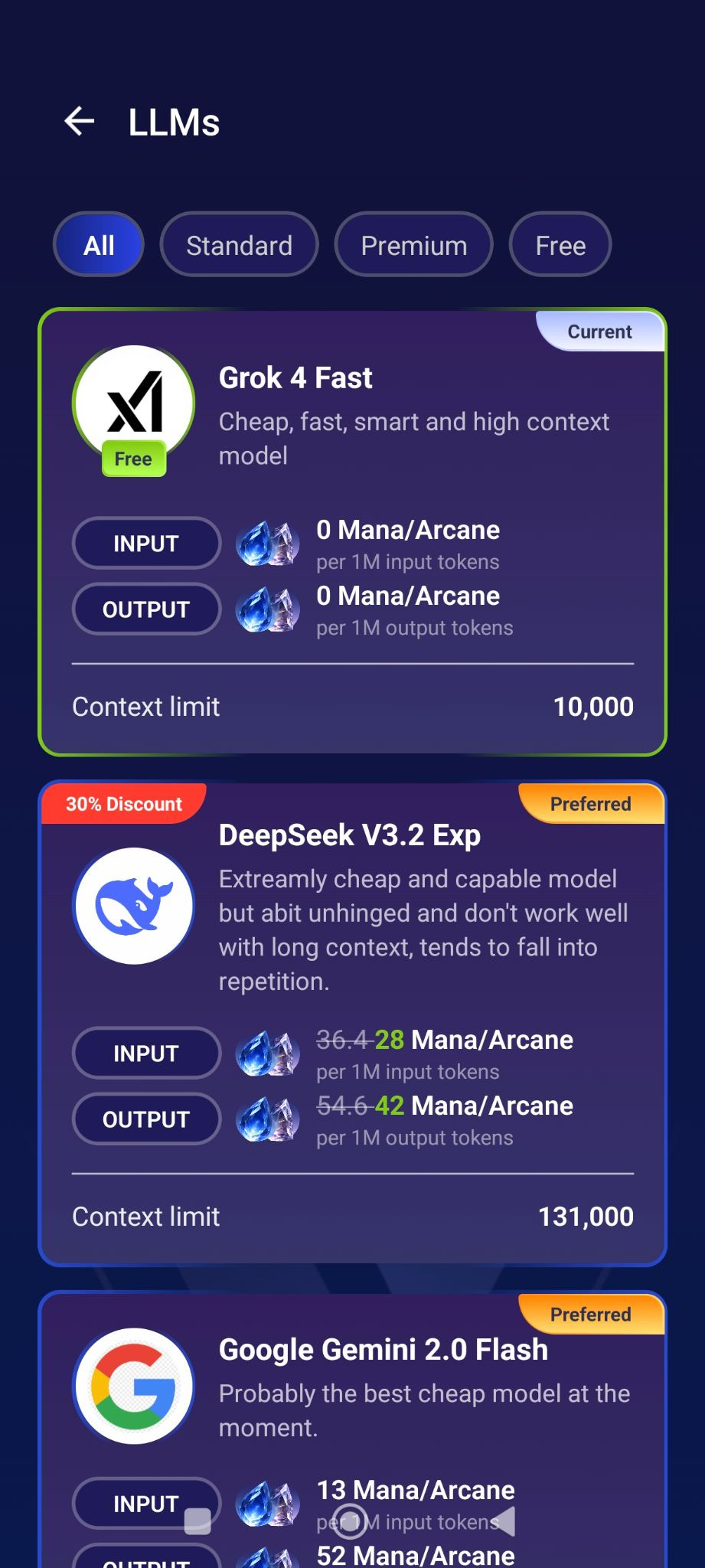
- Standard Model: 28 Mana per 1M input, 42 Mana per 1M output
- Premium Model: Higher Arcane costs for premium quality
Key Features
Switch Models Anytime
- You can change LLM models mid-story without losing progress
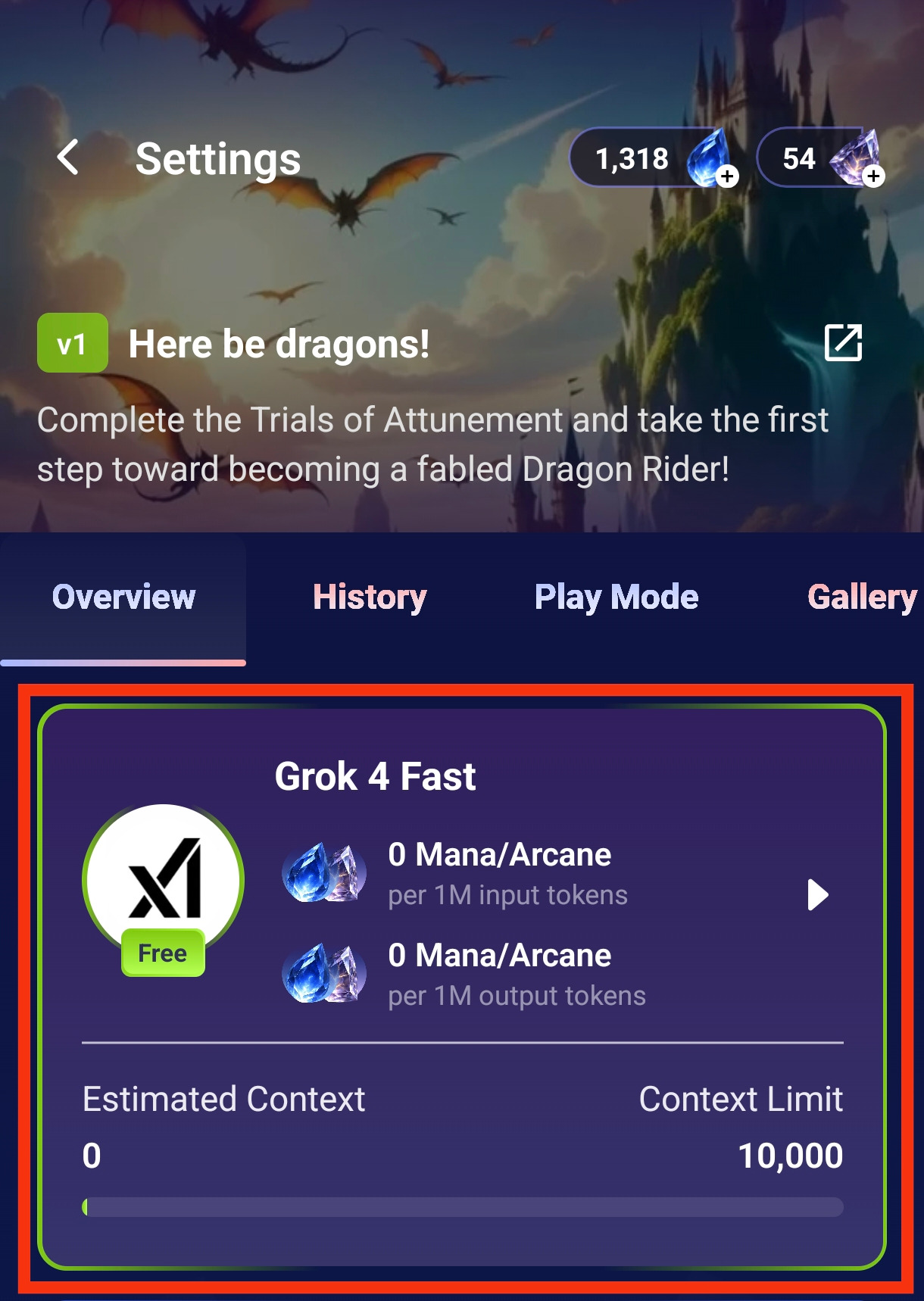
- Access by tapping the Settings icon (⚙️), then tap the model icon on the Storyline settings page
- Your conversation continues seamlessly with the new model
Context Limit
- Shows how much conversation history the model can remember
- Higher limits = better memory of earlier story events
- Ranges from 10,000 (basic) to 131,000+ (premium)
How to Switch Models
- Tap the Settings icon (⚙️) at the top right of your Storyline
- Tap your current LLM model card and tap your choice of LLM
- Browse available models filtered by type (All/Standard/Premium/Free)
- Tap your desired model to switch
- Continue your story with the new model
Quick Tip: Finding Your Current Model
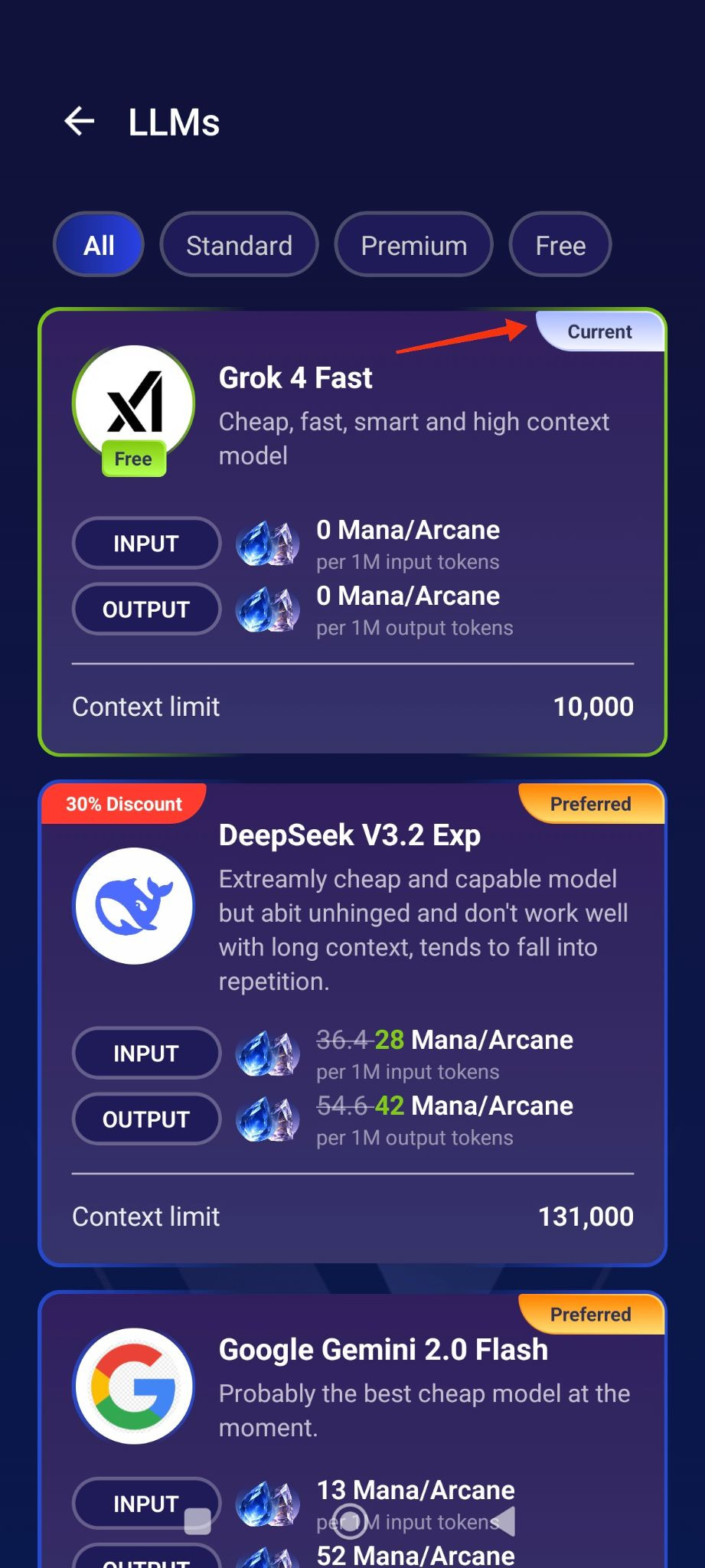
To see which LLM you're currently using, simply check for the "Current" label when viewing the model selection screen. Only your active model will display this badge.
💡 Tip: Check the model description for specific strengths and weaknesses to find the best fit for your playstyle!